Compare AI answers side by side on your Mac
When you want a second opinion from another AI, copying the same question between tabs gets repetitive. Chorus puts the services’ websites in one Mac app and sends your prompt to them together.
1. Sign in to the AI services you use
Download Chorus, install it, and sign in inside the ChatGPT, Claude or Gemini panels with your existing accounts. The web panels do not need an API key. Each service’s account requirements, free limits and paid plans still apply.
2. Ask one question
Try this sample prompt in the shared composer:
Rewrite this message in natural English, keeping it under 40 words: “I finished the first version. Could you try it this week and tell me what feels confusing?” Give me one casual version and one more formal version.
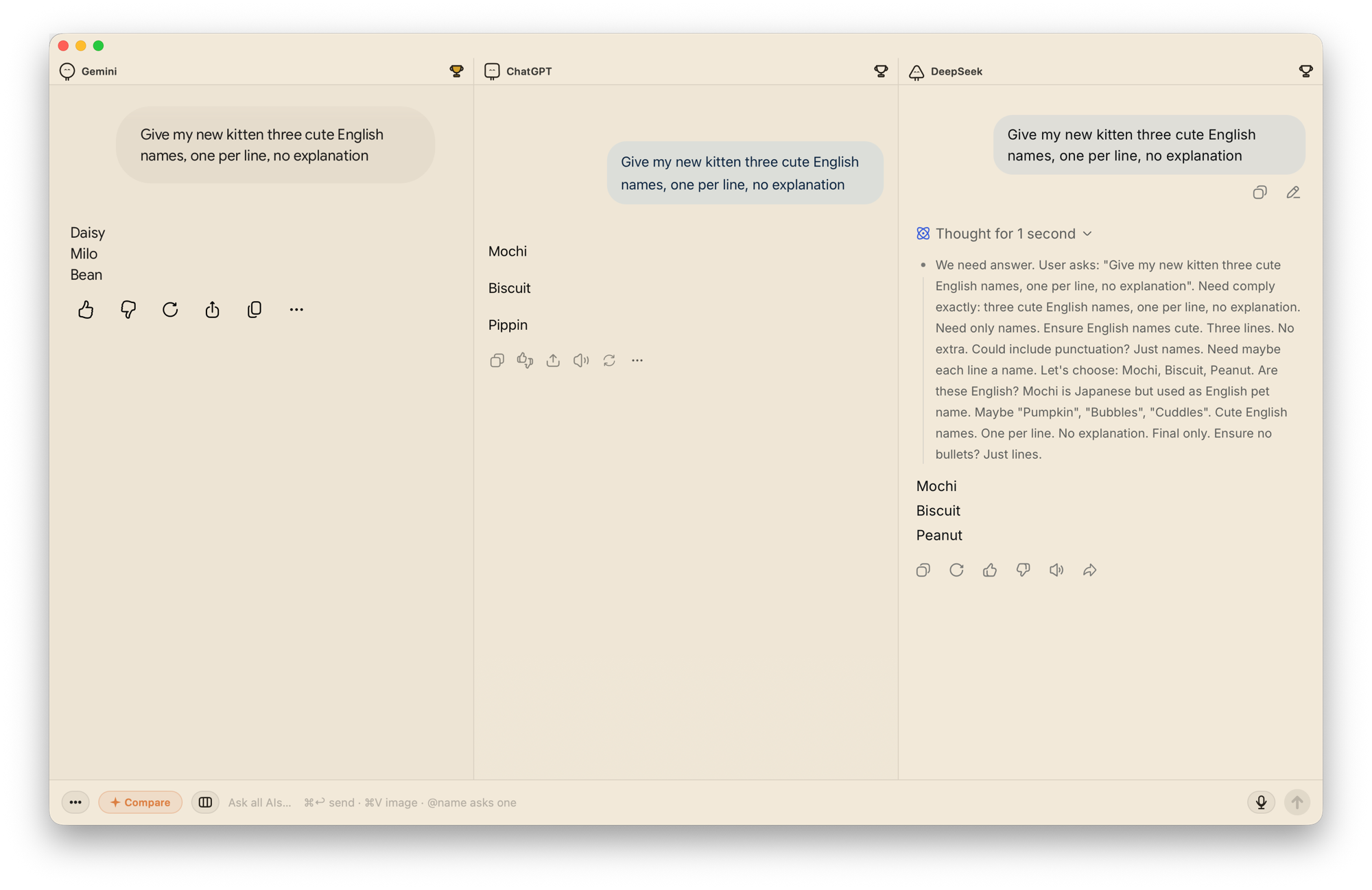
Send it to the enabled panels and read the replies side by side. For this task, compare whether each version keeps the meaning, sounds natural and respects the word limit.
3. Follow up with just one AI
Type @ in the composer and select one AI. Try “Make the casual version a little warmer.” That follow-up goes only to the selected panel; the other replies stay in place.
Optional: generate a comparison
Configure an OpenAI-compatible API model to use the one-click comparison. It receives your prompt and the extracted replies and generates a comparison of them. Your API provider’s pricing and data policies apply. You can also compare the replies yourself without configuring an API.
Agreement between models is not proof that an answer is correct. For factual questions, check the original sources.